How to Estimate CALM Act Audio Loudness Online?
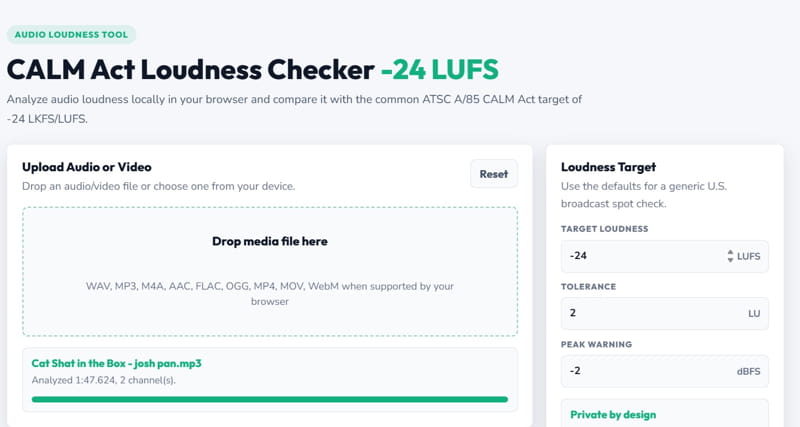
If you are preparing commercials, sponsored videos, syndicated content, or broadcast-ready media for U.S. delivery, loudness is one of the final checks you should not skip.
A mix can sound fine in your editing timeline and still create problems during delivery review if the overall loudness is too high, too low, or poorly balanced. That is why many editors, agencies, and post-production teams use a loudness preflight step before sending a final master.
This guide explains the CALM Act loudness target, what `-24 LUFS / LKFS` means, and how to run a private browser-based estimate with the free [CALM Act Loudness Checker](https://www.valsolution.com/tools/calm-act-loudness-checker) from ValSolution.
Important: this article and tool provide a practical loudness estimate for editing and QA. They are not legal advice, not an official FCC or ATSC test, and not a replacement for an approved broadcast loudness meter or your broadcaster’s delivery specification.
What Is the CALM Act?
The CALM Act, short for Commercial Advertisement Loudness Mitigation Act, is a U.S. law created to address loud television commercials.
In simple terms, commercials should not feel noticeably louder than the programming around them. The FCC’s loudness rules point to ATSC A/85, a broadcast loudness practice used to measure and manage perceived audio loudness.
For editors and content teams, the practical takeaway is this:
Most U.S. broadcast loudness workflows are built around a target of approximately `-24 LKFS`, often discussed interchangeably with `-24 LUFS`.
LUFS, LKFS, and Peak Level Explained
Traditional meters often show `dBFS`, which tells you how close the waveform gets to digital clipping. That is useful, but it does not fully describe how loud audio feels to a listener.
`LUFS` and `LKFS` measure perceived loudness over time. They use K-weighting, a filter designed to better match how human hearing responds to different frequencies.
The most important values are:
Some delivery specs require true peak measurement in `dBTP`. The ValSolution browser checker provides a sample peak warning, not a certified true-peak replacement. For final delivery, always follow the exact network, platform, or broadcaster spec.
Why Use a Browser-Based Loudness Estimate?
Many loudness tools require desktop plugins, paid audio suites, or a full post-production setup. Those are still important for final delivery, but sometimes you just need a quick preflight check before sending a file onward.
The ValSolution CALM Act Loudness Checker is designed for that early QA step.
It helps you estimate:
- Integrated loudness in LUFS
- Difference from the `-24 LUFS` target
- Suggested gain adjustment
- Sample peak level
- Duration and channel count
- Whether the file is inside your selected target range
The goal is not to certify the file. The goal is to catch obvious loudness issues before they cause delays later.
Private Audio Checking: No File Upload Needed
Privacy matters, especially when you are working with unreleased ads, client videos, trailers, internal corporate content, or NDA-protected media.
The ValSolution checker runs in your browser using the Web Audio API. When you choose a file, your browser decodes the audio locally and performs the loudness estimate inside the browser tab.
Your media file does not need to be uploaded to ValSolution for analysis.
Supported formats depend on your browser, but common files such as WAV, MP3, M4A, AAC, FLAC, OGG, MP4, MOV, and WebM may work when your browser can decode them.
How to Check a File Against the -24 LUFS Target
Follow this simple workflow:
1. Open the CALM Act Loudness Checker.
2. Drop your audio or video file into the upload area.
3. Keep the default target settings:
- Target loudness: `-24 LUFS`
- Tolerance: `2 LU`
- Peak warning: `-2 dBFS`
4. Wait for the browser to decode and analyze the audio.
5. Review the result.
If the file is inside the selected target range, no loudness gain change may be needed for this preflight estimate.
If the file is louder or quieter than the target, the tool will show a suggested gain adjustment. For example, if your file measures around `-19 LUFS`, the tool may suggest reducing gain by about `-5 dB`.
After adjusting the audio in your editing software, export the file again and run another check.
What the Result Means
The result should be treated as a practical editing signal, not a final legal decision.
A file inside the target range means the audio is close to your selected loudness target according to the browser estimate.
A review warning means the audio may need gain adjustment, limiting, or a more careful loudness pass in your editor.
If the sample peak warning appears, check your headroom before increasing gain. Raising loudness can also raise peaks, which may cause clipping or delivery issues.
Recommended Preflight Workflow
For a cleaner delivery process, add loudness checking near the end of your export routine:
1. Finish your final mix.
2. Export the master file.
3. Run a browser-based loudness estimate.
4. Apply the suggested gain change if needed.
5. Re-export and check again.
6. Use an approved meter or broadcaster-specific tool for final delivery validation.
This gives you a fast way to catch loudness problems before a client, traffic manager, or delivery portal flags the file.
The CALM Act and ATSC A/85 made loudness management a normal part of professional video delivery. Even if you are not doing final broadcast certification yourself, understanding the `-24 LUFS / LKFS` target can help you prepare cleaner, more predictable audio.
Use the free CALM Act Loudness Checker to estimate integrated loudness, review sample peak, and get a suggested gain adjustment before final delivery review.
Comments
Share a useful thought or ask a question about this article.
Leave a comment