Free 5.1 Surround Sound Tester – Check Audio Channels Online
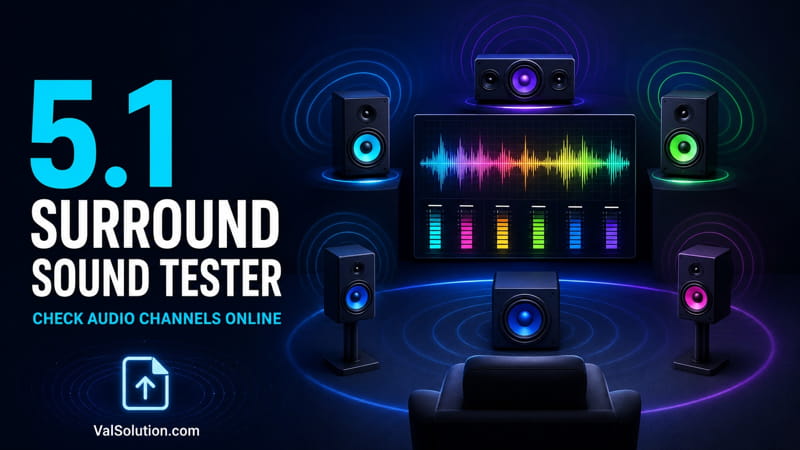
Have you ever downloaded or created an audio file labelled as 5.1 surround sound, but it played like normal stereo? A file name or media-player label does not always confirm whether the file contains real multichannel audio.
ValSolution’s free Audio Channel Tester helps you check the channel layout of an audio file online. You can upload your audio file and find out whether it contains mono, stereo, 5.1 surround or 7.1 surround audio.
Try the Audio Channel Tester:
https://www.valsolution.com/tools/audio-channel-tester
What Is an Audio Channel Tester?
An audio channel tester examines the channel structure of an audio file. It can help you identify whether the selected file contains one, two, six or eight audio channels.
Common audio channel layouts include:
- Mono: One audio channel
- Stereo: Two audio channels, usually Left and Right
- 5.1 Surround: Six audio channels
- 7.1 Surround: Eight audio channels
Knowing the channel count can be useful when working with movies, music, YouTube videos, podcasts, home-theatre systems and professional audio projects.
However, detecting the number of channels is only one part of the test. A file may contain six channels while one or more channels remain silent. The ValSolution tool therefore provides live channel meters and a virtual speaker layout, allowing you to see which decoded channels are receiving an audio signal.
How to Use the 5.1 Surround Sound Tester?
Using the tool is simple.
-
Open the ValSolution Audio Channel Tester.
-
Click the Load Audio option or drag and drop your file into the upload area.
-
Wait while the tool analyses the audio.
-
Check the detected channel count and audio properties.
-
Play the file and watch the live channel meters.
-
Observe the virtual home-theatre display to see which speaker positions become active.
You can also enter a supported audio URL or use the included stereo, 5.1 and 7.1 quick test tones.
Understanding a 5.1 Channel Layout
A standard 5.1 surround sound file normally contains six audio channels.
- Front Left: Carries sound intended for the left side.
- Front Right: Carries sound intended for the right side.
- Centre: Commonly used for dialogue and centred sounds.
- Low-Frequency Effects: Carries bass and other low-frequency effects.
- Surround Left: Produces surrounding effects from the left side.
- Surround Right: Produces surrounding effects from the right side.
When a compatible 5.1 audio file is played, the live meters show whether these decoded channels contain an active signal. This can help you detect silent channels, duplicated sound or an incorrect channel layout.
Check Mono, Stereo, 5.1 and 7.1 Audio
The ValSolution Audio Channel Tester is not limited to 5.1 audio.
Mono Audio
A mono file contains one audio channel. The playback device may distribute this sound across one or more speakers, but the source itself has only one channel.
Stereo Audio
A stereo file contains two channels: Left and Right. Stereo is commonly used for music, mobile videos, online videos, headphones and podcasts.
5.1 Surround Audio
A 5.1 file contains six audio channels. This format is commonly used for movies, home-theatre content and immersive video productions.
7.1 Surround Audio
A 7.1 file contains eight audio channels. It provides additional surround positions for more detailed sound placement.
ValSolution plans to enhance the tool and add improved support for more advanced multichannel audio layouts in future updates.
Live Channel Meters and Virtual Home Theatre
The real-time visual display is one of the most useful features of this audio testing tool.
While the file is playing, active speaker positions illuminate in the virtual home-theatre display. The live meters respond to the audio signal detected in each decoded channel.
The tool currently provides:
- Automatic channel-count detection
- Virtual speaker visualisation
- Live audio channel meters
- Audio properties
- Channel mapping
- Playback controls
- Diagnostic information
- Stereo quick test tones
- 5.1 surround quick test tones
- 7.1 surround quick test tones
These test tones can also help you check a speaker arrangement without uploading your own audio file.
Supported Audio and Media Formats
The tool is designed to work with several commonly used audio and media formats, including:
- WAV
- FLAC
- AAC
- AC3
- EAC3
- MP3
- M4A
- MP4
- MKV
- DTS and other sources where browser decoding is available
Audio decoding support can vary depending on the browser, device, operating system and codec.
If a file does not play, it does not necessarily mean that the audio file is damaged. Its codec may not be supported by your current browser.
For better results, use an updated desktop browser. Files in WAV, MP3, AAC or another browser-compatible format may provide more consistent playback.
Channel Count and Active Audio Channels Are Different
It is important to understand the difference between the channel count and the active audio signal.
Channel count tells you how many channels are available or decoded in the audio file.
Active channel signal tells you whether a particular channel contains audible content during playback.
For example, a file may report six channels, but its centre or surround channels could remain silent during certain parts of the recording.
Play different portions of the file and watch the live meters before deciding whether a channel is completely empty.
Who Can Use This Tool?
The Audio Channel Tester can be useful for:
- YouTube creators
- Video editors
- Audio engineers
- Music producers
- Podcast creators
- Filmmakers
- Home-theatre users
- Broadcasters
- Streaming professionals
- Students learning about multichannel audio
Creators can check an exported audio file before publishing a video. Home-theatre users can use it to inspect test files and understand their speaker-channel arrangement.
Does This Tool Convert Stereo Audio to 5.1?
No. The Audio Channel Tester is designed to analyse, play and visualise audio channels. It does not automatically convert a stereo file into 5.1 surround sound.
If your file contains stereo audio and you want to create a six-channel version, you can use ValSolution’s separate Stereo to 5.1 Upmixer after testing the original file.
Testing the source file first helps you determine whether conversion or channel adjustment is required.
Frequently Asked Questions
How can I check whether an audio file is really 5.1?
Upload the file to the ValSolution Audio Channel Tester. Check the detected channel count, play the audio and watch the live meters for the front, centre, bass and surround channels.
Can I test a stereo audio file?
Yes. The tool can detect and display mono, stereo and supported multichannel audio layouts.
Can I test 7.1 surround sound?
Yes. The tool includes 7.1 channel visualisation and a quick 7.1 test tone. Actual file playback depends on browser and codec support.
Why does my file show six channels while some meters remain silent?
A file can contain six channel tracks even when one or more tracks have no signal during a particular section. Play different portions of the recording and check the meters again.
Why is my audio file not playing?
The audio codec may not be supported by your browser or operating system. Try an updated browser or use a more widely supported file format.
Will more audio channel layouts be supported?
The tool will be enhanced in future updates with improved support for additional and more advanced multichannel layouts.
Test Your Audio Channels Now
Whether you need to check a mono recording, stereo file, 5.1 surround track or 7.1 audio source, the ValSolution Audio Channel Tester provides a convenient way to inspect it online.
Upload your file, check its channel layout and watch the live channel activity before using the audio in your final project.
Open the free Audio Channel Tester:
Comments
Share a useful thought or ask a question about this article.
Leave a comment