How to Check Audio Channels in Your Audio File?
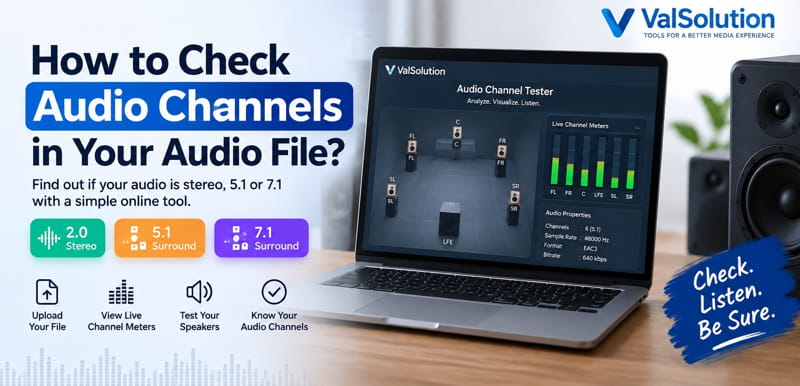
Sometimes an audio file says it is stereo, 5.1, or 7.1 surround sound, but how do you know how many audio channels are actually inside the file?
You can check this easily with the ValSolution Audio Channel Tester. It works online in your browser, so you do not need to install any software.
What Are Audio Channels?
Audio channels are separate sound streams used for different speakers.
For example:
- Mono audio has 1 channel.
- Stereo audio has 2 channels: Left and Right.
- 5.1 surround audio normally has 6 channels.
- 7.1 surround audio normally has 8 channels.
A file name may contain words like "5.1 Surround", but that does not always mean that all six channels are being used properly. Checking the real channel activity gives you a better idea.
How to Check Audio Channels Online
Open the Audio Channel Tester and load your audio or video file.
1. Select Your File
Choose the audio file you want to check. You can also drag and drop a supported file into the tool.
The tool can be useful for common audio and video formats such as WAV, FLAC, MP3, AAC, M4A, MP4, MKV and surround audio formats.
2. Check the Detected Audio Channels
After the file is loaded, the tool checks its audio stream and shows the detected channel layout.
For example, it may show:
- 1.0 Mono
- 2.0 Stereo
- 5.1 Surround
- 7.1 Surround
3. Play the Audio
Now start playing the file.
The virtual speaker display helps you see which channels are receiving sound while the audio is playing.
In a 5.1 audio file, you may see channels such as:
- Front Left
- Front Right
- Center
- Subwoofer or LFE
- Surround Left
- Surround Right
4. Watch the Channel Meters
The live channel meters are one of the easiest ways to understand what is happening inside the audio file.
If a channel contains sound, its meter will move during playback.
For example, a file may technically contain six channels, but only the left and right channels may have noticeable audio. In that case, the file may not be using the surround channels properly.
How to Check If an Audio File Is Really 5.1
A normal 5.1 audio file contains six channels:
Front Left, Front Right, Center, LFE, Surround Left and Surround Right.
Load your file into the Audio Channel Tester and play it. Check the detected channel count and watch the channel meters.
Remember that all six speakers do not need to play sound all the time.
For example, dialogue may mainly come from the center speaker, while background music and sound effects may use the front and surround speakers.
Can You Check 7.1 Audio?
Yes. If your file contains 7.1 audio, the tool can help you check the eight-channel layout and see activity from the different speaker positions.
This can be useful when testing movie audio, surround music, edited videos, or exported multichannel files.
Test Your Speakers with Test Tones
Sometimes your audio file is correct, but your speaker setup may not be configured properly.
You can use the available test tones to check whether sound is coming from the correct speaker position.
For example, when the Front Left test plays, you should hear it from the front-left speaker.
This makes it easier to understand whether the problem is with your audio file or with your speaker setup.
Who Can Use This Tool?
The Audio Channel Tester can be useful for:
- Video editors
- YouTube creators
- Filmmakers
- Music creators
- Home theatre users
- Surround sound users
- People testing 5.1 or 7.1 audio files
Do You Need to Install Any Software?
No. The tool works directly in your web browser.
You can simply open the page, select your file, play it and check the audio channels.
If you want to know whether your audio file is mono, stereo, 5.1 or 7.1, checking the actual audio channels is better than relying only on the file name.
The ValSolution Audio Channel Tester gives you a simple way to check the channel layout, watch live channel activity and test surround sound directly in your browser.
Try the Audio Channel Tester:
https://www.valsolution.com/tools/audio-channel-tester
You can also download a mono or stereo audio file to 5.1 audio converter app.
Comments
Share a useful thought or ask a question about this article.
Leave a comment