How to Convert Unlimited Free Text to Audio Voice Generator?
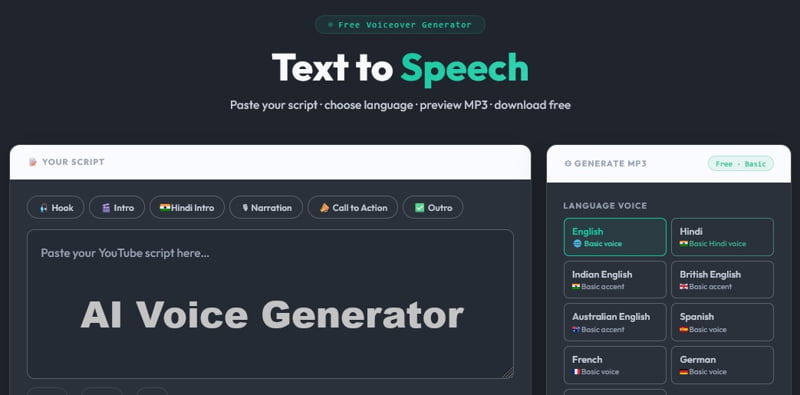
Text-to-speech tools are becoming very useful today. Earlier, if someone needed a voiceover for YouTube, reels, tutorials, school projects, presentations, or podcast-style content, they had to record their own voice or hire a voice artist. But now, you can simply type your script and convert it into an audio file.
In this post, I am sharing a simple way to convert text into audio using the free Text to Speech tool by Valsolution.
You can try it here:
https://www.valsolution.com/tools/text-to-speech
What is a Text to Audio Voice Generator?
A text to audio voice generator is an online tool that converts written words into spoken audio. You paste your script, choose a language, select speed, and generate an MP3 file.
This type of tool is useful for:
- YouTube voiceovers
- Instagram reels
- Facebook videos
- Educational content
- Tutorials
- Product explanation videos
- Short news updates
- Presentations
- Podcast-style audio
- Hindi or English narration
The best part is that you do not need any heavy software. It works directly in the browser.
My Review of Valsolution Free Text to Speech Tool
I tested the Valsolution Text to Speech tool, and it is made for simple and quick voice generation. It is not overloaded with confusing options. The page is clean: paste your text, choose the language voice, select the speaking speed, generate MP3, preview it, and download it.
For basic work, this is very useful.
The tool supports different language options like English, Hindi, Indian English, British English, Australian English, Spanish, French, German, and Japanese. It is especially helpful for creators who want to create quick narration without recording again and again.
One thing I liked is that the preview and download use the same generated MP3 file. So what you listen to in preview is the same audio you download.
How to Convert Text to Audio for Free?
Using this tool is very simple.
Step 1: Open the Text to Speech Tool
Go to:
https://www.valsolution.com/tools/text-to-speech
Step 2: Paste Your Script
Copy your article, video script, paragraph, intro, outro, or narration text and paste it into the text box.
For better voice output, do not paste very long unformatted text. Use short sentences and proper punctuation.
Example:
Instead of writing:
“Hello friends today we are going to learn how to convert text into audio using free tool”
Write like this:
“Hello friends, today we are going to learn how to convert text into audio using a free tool.”
Small commas and full stops make the voice sound more natural.
Step 3: Choose Language Voice
Select the language voice you want. For example:
English
Hindi
Indian English
British English
Australian English
Spanish
French
German
Japanese
For Hindi content, write your Hindi script clearly. Avoid mixing too many unclear short forms because text to speech tools read exactly what you write.
Step 4: Select Speaking Speed
You can choose the speaking speed according to your content.
For tutorials and Hindi narration, normal or relaxed speed is usually better. For short reels or quick videos, normal speed works well.
Step 5: Generate MP3
Click on Generate MP3.
After the file is generated, you can preview the voice.
Step 6: Download Audio
Once you are happy with the preview, download the MP3 file and use it in your video editor, presentation, or audio project.
How to Use It Like an Unlimited Free Text to Speech Tool?
Many people search for “unlimited free text to speech” or “unlimited free AI voice generator”. But practically, most free tools have some limit per generation.
Valsolution free text to speech currently allows up to 5,000 characters per download. That is enough for many short videos, reels, intros, product explainers, and small tutorials.
For longer scripts, you can use a simple method:
1. Divide your long script into small parts.
2. Generate audio for Part 1.
3. Download the MP3.
4. Generate audio for Part 2.
5. Continue the same process.
6. Join all MP3 files in your video editor or audio editor.
This way, you can convert a long script into audio without needing to record your own voice.
For example, if you have a 3,000-word article, do not paste everything in one go. Break it into sections like:
- Introduction
- Main point 1
- Main point 2
- Main point 3
- Conclusion
This also gives better pronunciation and more natural pauses.
Best Uses of Free Text to Audio Generator
This tool is useful for many types of users.
For YouTubers
If you create informational videos, tutorials, news updates, or faceless YouTube videos, you can convert your script into MP3 and use it as voiceover.
For Students
Students can convert notes into audio and listen while revising. It can also help in presentations and project work.
For Bloggers
Bloggers can create audio versions of their posts. This can help users who prefer listening instead of reading.
For Social Media Creators
Short scripts for reels, shorts, and status videos can be converted into audio quickly.
For Business Owners
You can create product explanation audio, announcement audio, or simple training voiceovers.
For Teachers
Teachers can prepare learning audio, language practice content, or lesson narration.
Tips to Make Text to Speech Sound Better
Text-to-speech output depends a lot on how you write your script. If your script is clean, the audio sounds better.
Here are some simple tips:
- Use Short Sentences
- Long sentences can sound robotic. Keep sentences short and clear.
- Use Commas and Full Stops
- Punctuation helps the voice take natural pauses.
- Write Numbers Carefully
Sometimes numbers may not sound the way you expect. If pronunciation matters, write numbers in words.
Example:
Instead of “2026”, you can write “twenty twenty-six” if that sounds better for your script.
Do not use unnecessary symbols, emojis, or broken formatting in the script.
Before generating a full script, test one paragraph. If it sounds good, continue with the full script in parts.
Hindi text sounds better when sentences are short. Use proper commas and full stops. Also avoid writing half-English and half-Hindi in the same sentence unless required.
Free Version vs Premium Voice Generator
The free version of Valsolution Text to Speech is good for basic voice generation. You can choose language voice and generate MP3.
But if you need a fixed Hindi male voice, deep news-style voice, emotional voice, branded voice, or client-level professional voiceover, then our premium/API-powered voice generator will be a better option, which is coming soon.
So for simple work, the free tool is enough. For professional voice branding, premium voice options are better.
Is It Good for YouTube Videos?
Yes, you can use the downloaded MP3 in YouTube videos, reels, presentations, and learning content.
But for commercial or client projects, it is always better to check the applicable speech engine terms or use a licensed premium TTS API. This is important if you are doing paid work for clients or building a commercial product.
For personal videos, tutorials, and normal content creation, this type of tool can save a lot of time.
Why Use Valsolution Text to Speech Tool?
Here are the main reasons:
- Free to use
- No signup required
- No software installation
- Works in browser
- Supports multiple languages
- Downloads MP3 audio
- Useful for YouTube, reels, tutorials, and presentations
- Simple interface
- Good for quick voiceover creation
It is a practical tool for creators who want fast audio without spending time recording and editing voice manually. If you want to convert text into audio for free, Valsolution Text to Speech is a simple and useful option. It is not complicated, and you do not need technical knowledge.
Just paste your script, select a language, choose speed, generate MP3, preview it, and download the audio. For long scripts, split the text into smaller parts and generate audio section by section. This is the easiest way to use it like an unlimited free text to audio workflow.
Try the tool here:
https://www.valsolution.com/tools/text-to-speech
If you need more natural, branded, or premium voice styles, our AI Voice Generator is coming soon. Keep in touch.
FAQs
Is there any free unlimited AI voice generator?
There are many free text to speech tools available online, but most of them have some limit per generation, daily usage, voice style, or download length. Valsolution Text to Speech can be used free for basic text to audio conversion, with up to 5,000 characters per download.
If your script is longer, you can split it into smaller sections and generate MP3 files one by one. This is a practical way to convert long text into audio for free.
What are some good 100% free text to voice generators?
A good free text to voice generator should be easy to use, should not force signup for basic use, and should allow MP3 download. Valsolution Text to Speech is one such free tool where you can paste text, choose language voice, generate audio, preview it, and download MP3.
It is useful for YouTube voiceovers, reels, tutorials, learning content, and presentations.
How to get unlimited text to speech?
To get unlimited text to speech in a practical way, divide your long script into smaller parts. Generate audio for each part separately and then combine those MP3 files in your video editor or audio editor.
For example, if your script is very long, divide it into an introduction, main sections, and conclusion. This also helps the voice sound cleaner and more natural.
Can we convert text to audio?
Yes, you can convert text to audio using an online text to speech tool. Simply paste your text, choose the language voice, generate the MP3, preview the audio, and download it.
Valsolution Text to Speech helps you convert written text into downloadable MP3 audio directly from your browser.
Comments
Share a useful thought or ask a question about this article.
Leave a comment