How to Trim Audio Online for Vlog and Video Editing? (Free & Easy)
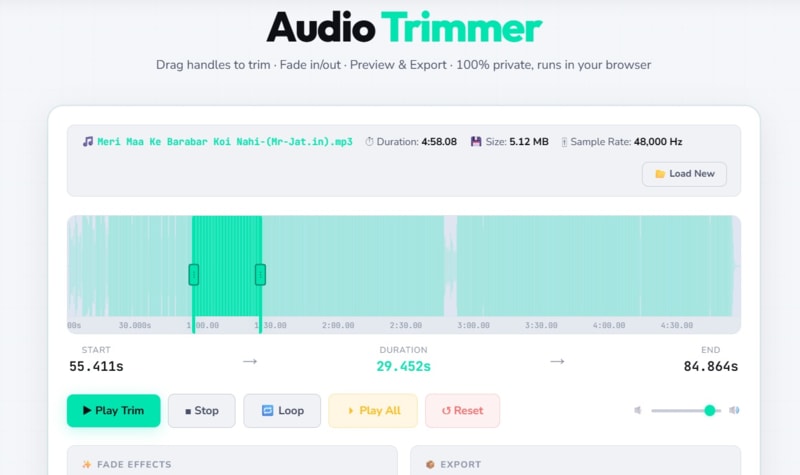
How to Trim Audio Online for Vlog and Video Editing (Free & Easy)
Published by VAL Solution | Audio Tools
If you've ever recorded a podcast, shot a vlog, or edited a YouTube video, you already know the pain — there's always that extra three seconds of silence at the start, a random background noise in the middle, or a cringeworthy ending you just can't leave in. The good news? You don't need to download heavy software or pay for a premium subscription to fix it. With a free online audio trimmer, you can cut, crop, and clean up your audio files in seconds — right from your browser. No installs. No watermarks. No headaches.In this guide, we'll walk you through exactly how to trim audio online for vlogs and video editing, why it matters for your content, and how to get the cleanest results every single time.
Why Audio Trimming Matters for Vloggers and Video Editors -
Before we get into the how, let's talk about the why.
Good audio is, arguably, more important than good video. Studies consistently show that viewers will tolerate slightly shaky footage — but they'll click away from bad audio within seconds. Whether you're a YouTube creator, a TikTok editor, a podcast host, or just someone putting together a reel for Instagram, trimmed and polished audio is what separates amateur content from professional-sounding work.
Here's what messy, untrimmed audio can do to your content:
- Dead air at the start makes your intro feel unprepared and sloppy
- Trailing silence at the end kills the momentum of your edit
- Unwanted background noise or accidental sounds break immersion
- Music cuts that feel abrupt instead of smooth make your whole video feel cheap
The fix? Trim it. And with the right online tool, it takes less than a minute.
What Is an Online Audio Trimmer?
An online audio trimmer is a browser-based tool that lets you cut and crop audio files without installing any software. You upload your audio file, select the section you want to keep (or remove), and download the trimmed version — all within your browser window.
The best tools support popular formats like MP3, WAV, AAC, FLAC, OGG, and M4A, which cover virtually everything you'd use in vlog or video production.
VAL Solution's Free Online Audio Trimmer is one such tool — clean, fast, and completely free to use with no sign-up required.
Step-by-Step: How to Trim Audio Online for Vlog and Video Editing
Here's the simplest way to get a perfectly trimmed audio clip using an online audio trimmer:
Step 1: Open the Audio Trimmer Tool -
Head over to VAL Solution's Free Online Audio Trimmer. The tool loads instantly in your browser — no download, no plugin, no account needed.
Step 2: Upload Your Audio File -
Click the Upload button and select your audio file from your device. The tool supports all major audio formats, including MP3, WAV, AAC, FLAC, and OGG. Whether it's a raw voice recording, a background music track, or exported audio from your video editor — just upload it.
Pro Tip: If your audio is still inside a video file (like an MP4), export the audio track first using your video editor or a quick online video-to-audio converter, then upload it here.
Step 3: Select the Section You Want to Keep -
Once your file loads, you'll see a waveform or timeline. Drag the start handle and end handle to highlight the exact section you want to keep. The visual waveform makes it easy to spot where silences, spikes, or noise happen — no guessing required.
For vlog editing, this is where the magic happens:
Want to remove the awkward silence before you start talking? Drag the start point forward.
Want to cut off the rambling at the end? Pull the end handle back.
Want to isolate one perfect 30-second clip from a 5-minute recording? Just set your handles and crop.
Step 4: Preview Before You Commit -
Always hit Play or Preview before downloading. This lets you hear exactly what the trimmed clip sounds like — saving you the frustration of downloading the wrong section and having to start over.
Step 5: Apply Fade In / Fade Out (Optional but Recommended)
For background music in vlogs, abrupt starts and stops sound jarring. If your tool supports it, apply a fade-in at the beginning and a fade-out at the end. This creates smooth, professional-sounding transitions that blend naturally into your video edit.
This is especially useful for:
- Intro and outro music in YouTube videos
- Background ambiance in travel vlogs
- Transition sounds in short-form content
Step 6: Download Your Trimmed Audio -
Click Crop or Download, and your trimmed audio file will be saved to your device within seconds. From there, you can drag it right back into your video editing software — whether that's Premiere Pro, DaVinci Resolve, CapCut, or iMovie.
Common Audio Trimming Use Cases for Vloggers -
Still wondering where this actually fits in your workflow? Here are the most common scenarios where an online audio trimmer saves the day:
🎙️ Cleaning Up Voice Recordings -
Whether you record your voiceover with a USB mic or your phone, there's almost always junk at the beginning and end. Trim those off before dropping the file into your editor.
🎵 Cutting Background Music to Fit Your Video -
You found the perfect royalty-free track — but it's 3 minutes long and your vlog is 90 seconds. Trim it down to fit, add a fade out, and you're done.
📱 Creating Sounds for Social Media Reels -
Need a crisp 15-second sound clip for Instagram Reels or TikTok? Trim your audio to the exact length, export it, and use it directly in your short-form content.
🎧 Editing Podcast Segments -
For podcast creators, trimming dead air, false starts, and coughs before exporting individual segments is a standard part of the workflow. An online tool makes this fast when you're working on multiple clips.
📞 Making Custom Ringtones -
Want to use a clip from your favourite song or audio? Trim it to 30–40 seconds, save it as M4R (for iPhone) or MP3 (for Android), and you're sorted.
What to Look for in a Free Online Audio Trimmer -
Not all online audio cutters are created equal. Here's what makes a tool genuinely worth using:
Why It Matters? -
- No sign-up required
- You shouldn't need an account just to trim a file
- Multiple format support
- MP3, WAV, FLAC, AAC — the more, the better
- Waveform visualization
- Helps you make precise cuts visually
- Fade in / Fade out
- Essential for smooth audio transitions
- No quality loss
- Trimming should never degrade your audio
- Works on mobile
- Edit on the go from your phone or tablet
- No file size restrictions
- So you can work with longer recordings
- Privacy-safe
- Files are never stored permanently on any server
Tips for Better Audio in Your Vlogs -
Trimming is just one part of good audio practice. Here are a few extra habits that'll level up your audio quality as a creator:
Record in a quiet room. Even the best online audio trimmer can't fully remove heavy background noise — prevention is better than editing.
Use a pop filter if recording voice. It reduces plosive sounds (those harsh "P" and "B" sounds) that are annoying to trim around.
Keep your recordings slightly longer than you need. Always record a second or two before and after your intended clip. This gives you more room to make a clean cut.
Normalise your audio levels. After trimming, make sure your audio hits around -12 to -6 dB for voice — loud enough to hear, quiet enough not to clip.
Use music strategically. Background music should sit under your voice, not compete with it. Trim your music file to fit the energy of each segment of your video.
So whether you're a daily vlogger, a YouTube creator, a short-form content maker, or someone just getting started with video editing, clean, trimmed audio is one of the fastest ways to make your content sound more professional and polished.
The best part? You don't need expensive software or hours of tutorials to get there. A free online audio trimmer gives you everything you need to cut the clutter, keep the good stuff, and publish content you're proud of.
Ready to get started? Try the VAL Solution Free Online Audio Trimmer — no sign-up, no download, completely free.
Comments
Share a useful thought or ask a question about this article.
Leave a comment