How to Remove Video Background Online for Free?
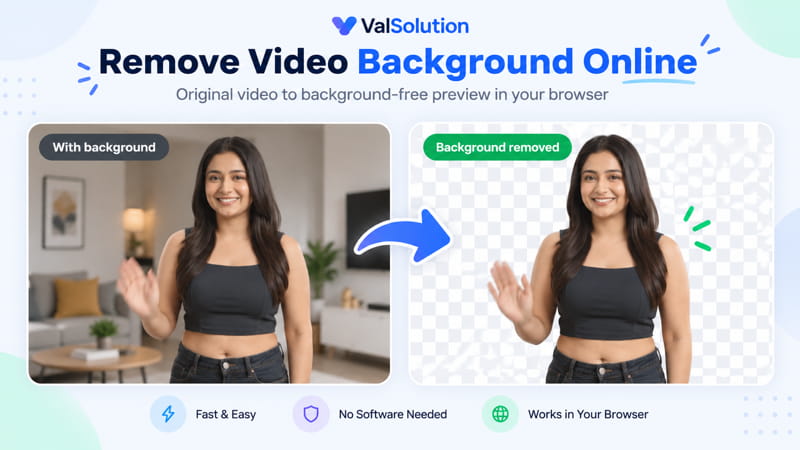
Removing a background from a video is useful for YouTube videos, product demos, online classes, social media clips, presentations, advertisements, and many other creative projects.
Normally, video background removal needs a desktop video editor or a paid AI service. I wanted a simpler option, so I added a Video Background Remover to ValSolution that works directly inside the browser.
You can try it here:
The tool is free to use and your selected video is processed locally in your browser. Your video does not need to be uploaded to the ValSolution server.
What Does the Video Background Remover Do?
The tool takes a short video and separates the foreground from the background.
After processing, it creates a WebM video with a solid chroma-key background. You can then remove that green or custom color in editors such as VSDC, DaVinci Resolve, Adobe Premiere Pro, CapCut, and other video editors that support chroma key.
The basic workflow is:
Upload video → Remove background → Download WebM → Use Chroma Key in your editor
The tool currently supports clips up to 30 seconds, up to 50 MB, with output up to approximately 480p.
Three Background Removal Modes
Different videos need different methods, so the tool provides three options.
1. Person AI — Recommended
This is the easiest option for videos where a person is the main subject.
For example:
- talking-head videos
- presenters
- YouTube Shorts
- Reels
- online teachers
- product presenters
- news-style videos
The tool detects the person and replaces the surrounding background with a chroma-key color.
This is the recommended mode for most portrait videos.
Hair and very thin edges are estimated by the segmentation model, so it is always a good idea to check the preview before downloading.
2. Person + Objects — Beta
Sometimes the person is holding something important.
For example:
- a smartphone
- a product
- a book
- a microphone
- a package
- a small gadget
Normal person segmentation may remove part of these objects because they are technically not part of the human body.
The Person + Objects (Beta) mode tries to preserve objects that are touching or very close to the detected person.
It can be useful for product presentations and app demonstrations.
Because this feature is experimental, nearby graphics or edges may sometimes also be preserved. For the cleanest normal portrait cutout, use Person AI.
3. Outside Background
This mode is useful when the video already has a relatively simple or solid-color background.
Instead of removing every matching pixel in the video, it starts from the outside edges of the frame.
This helps protect the same color when it appears inside a logo, design, border, or graphic.
Some useful cases are:
- animated logos
- motion graphics
- title animations
- simple studio backgrounds
- overlays
- graphic elements
Remove Color Everywhere
There is also an advanced full-frame color removal option.
If you select a background color, every similar pixel in the frame can be removed.
This is useful for traditional green-screen or blue-screen footage.
However, you should use it carefully. If the selected color also appears on clothes, logos, products, or other foreground objects, those areas can also be removed.
Why Does the Downloaded Video Have a Green Background?
A browser cannot reliably export transparent video with an alpha channel through MediaRecorder on every device and browser.
Instead, ValSolution creates a solid chroma-key background.
Green is the default because it is familiar to most video editors.
You can also choose another color if your subject contains green.
For example, you could use:
- Green
- Blue
- Magenta
- Any custom color
The best color is simply one that does not appear in the important foreground area.
How to Use the Tool
Using it is simple.
- Open the Video Background Remover.
- Upload your MP4, WebM, MOV, or M4V video.
- Check the original and processed preview.
- Select Person AI, Person + Objects, or a color-based mode.
- Choose the export background color if required.
- Click Remove Background & Export.
- Download the processed WebM.
- Add the WebM to your video editor.
- Apply Chroma Key and select the same background color.
You can also change the removal mode without uploading the video again. The same selected video is reused automatically.
Use Case 1: YouTube Shorts and Reels
Suppose you recorded yourself speaking in your room, but you want a cleaner background for a YouTube Short.
You can remove the original room background using Person AI.
After downloading the processed clip, place it over:
- a gradient
- an image
- screen recording
- app interface
- presentation
- animated background
This is useful when you want a presenter-style video without setting up a physical green screen.
Use Case 2: Product Demonstration Videos
If you are holding a phone or small product while talking, try Person + Objects (Beta).
For example, a creator may be showing a mobile app on a smartphone.
The tool tries to preserve both the person and the object close to their body.
You can then place the presenter over a product page, app screenshot, or branded background.
Use Case 3: Online Teaching
Teachers and trainers can remove a room background and place themselves over:
- PowerPoint slides
- diagrams
- screen recordings
- course graphics
- whiteboards
This can make simple educational videos look much cleaner.
Use Case 4: App Promotion Videos
This is one of my own useful cases.
Suppose I want to promote an Android app.
I can create a presenter video, remove the background, and place the presenter over:
- app screenshots
- Play Store screenshots
- feature animations
- phone mockups
- promotional graphics
The result can look much more focused than showing the original room in the background.
Use Case 5: News or Presenter Videos
A presenter can be placed over a custom news-style background.
You do not necessarily need a physical studio or green screen.
This can work for:
- news explainers
- technology updates
- tutorial channels
- business presentations
- social media updates
Use Case 6: Logo and Motion Graphics
Person AI is not always the correct choice.
If you have an animation with a logo or graphic on a solid background, Outside Background may work better.
It tries to remove the background connected to the outside of the frame while protecting similar colors inside the design.
Use Case 7: Replace a Boring Background
Maybe you already have a useful video, but the background looks distracting.
Instead of recording the whole video again, you can process the clip and place the subject over a simpler background.
This can be useful for:
- portfolio videos
- business intros
- video resumes
- promotional clips
- personal branding videos
Your Video Stays on Your Device
Privacy was an important part of this tool.
The selected video is processed inside the browser.
It is not uploaded to the ValSolution server for background removal.
The Person AI feature may download the required segmentation model files, but your selected video itself remains on your device.
This also means processing speed depends on your computer or phone.
A faster device will normally process the video faster.
Why Is the Tool Limited to Short Videos?
Video processing is much heavier than processing a single image.
Every frame needs to be analyzed and rendered again.
Long videos can consume a lot of:
- CPU
- memory
- battery
- browser resources
For this reason, the current tool is designed mainly for short clips of up to 30 seconds.
That also makes it especially useful for Shorts, Reels, advertisements, intros, and presenter clips.
Does It Replace Professional Video Background Removal?
Not completely.
Professional desktop software and advanced AI video tools can use much larger models and more processing power.
ValSolution's tool is designed for a different purpose:
quick, free, private browser-based background removal for short videos.
Fine hair, motion blur, transparent objects, fast movement, and complicated foreground objects can still be difficult.
Always check the processed preview before using the final clip.
Person AI or Person + Objects: Which Should I Use?
For most videos, start with:
Person AI — Recommended
Use Person + Objects (Beta) only when something close to the person is important, such as a phone or product.
If the source already has a plain background, try Outside Background.
This simple rule will give the best starting point.
Final Thoughts
Background removal no longer has to start with a large desktop editor.
For short videos, ValSolution's browser-based tool can make the first step much easier.
Upload the video, choose the right removal method, preview the result, download the WebM, and finish the project in your preferred editor.
Try the Free Video Background Remover
No signup is required, and the video is processed on your device.
Comments
Share a useful thought or ask a question about this article.
Leave a comment